Use case
Change banner copy without rebuilding the layout
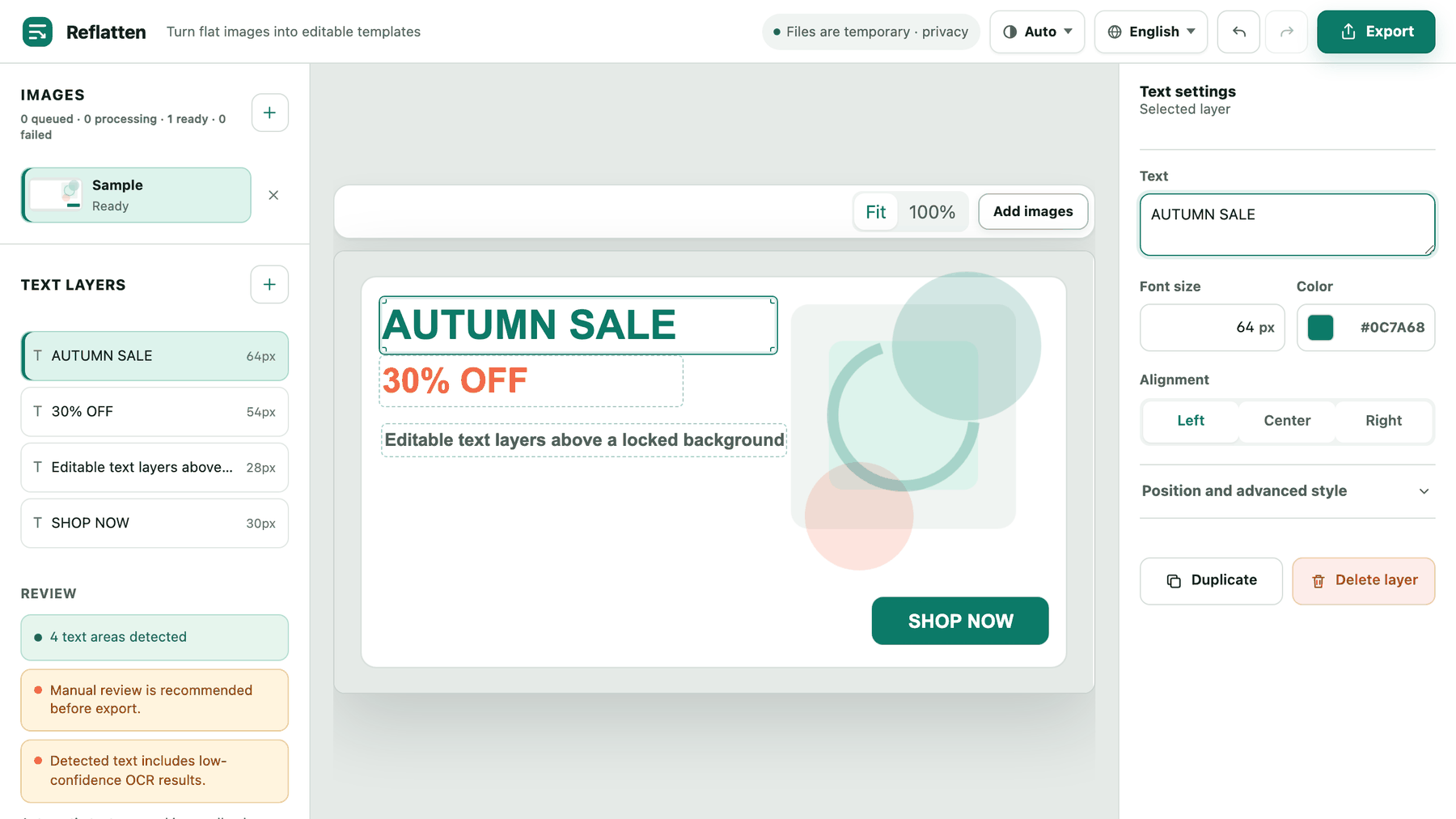
How a copy change goes
- Upload the finished banner
PNG, JPG or WebP. No account, and the file is only kept for as long as the job runs.
- Check what was detected
Each line becomes a layer with its measured size, sampled colour and alignment. The review panel calls out anything the OCR was unsure about, so you can fix a misread before it reaches the export.
- Retype the line you need
Select the layer, type the replacement, and adjust size, colour or alignment if the new wording is longer than the old one.
- Export a flat PNG
The result is a normal image you can hand to whoever asked for it, at the original pixel size or doubled.
The old text is removed, not covered
Applying a detected region clears the original wording from the background before the new layer goes on top, so you are not stacking text over text.
Layers you skip stay as they were
Detected areas you never apply are left as original pixels. Changing one headline does not disturb the rest of the banner.
Undo is there while you experiment
Edits are reversible in the editor, so trying a longer headline and stepping back costs nothing.
Where it struggles
- Will the replacement look identical to the original?
- Close, not identical. Size, colour and alignment are measured from the image, but the original typeface cannot be recovered from flattened pixels, so the font is a match rather than the real thing. Short factual swaps — a date, a price, a percentage — hold up best.
- What if the text sits over a photo or a gradient?
- Automatic removal is usually clean, but busy or textured backgrounds are exactly where it can leave a mark. The editor says so on screen. Check the area after editing and expect a touch-up on the hardest images.
- What if the new copy is longer than the old?
- The layer keeps the box it was detected in, so longer wording may need a smaller size or a different alignment. Both are in the inspector next to the text field.